
Why Are There So Many Image Formats on the Web?
If you've ever tried uploading an image and been hit with "unsupported format," you already know the pain. Or maybe you've downloaded something and wondered why it's a .png instead of .jpg — aren't they both just... images?
They are. But the way each format stores visual information is wildly different. Some prioritize small file sizes. Others care more about preserving every last pixel. A few try to do both. The format you choose directly affects how fast your page loads, how sharp your graphics look, and whether search engines consider your site well-optimized.
I've spent the better part of two years building and optimizing image-heavy websites, from product catalogs with hundreds of SKUs to photography portfolios where every pixel matters. Through that process, I've learned which formats genuinely work for which situations — not from theory, but from watching real PageSpeed scores change and real users bounce less when images load faster.
Here's what I've found, broken down format by format.
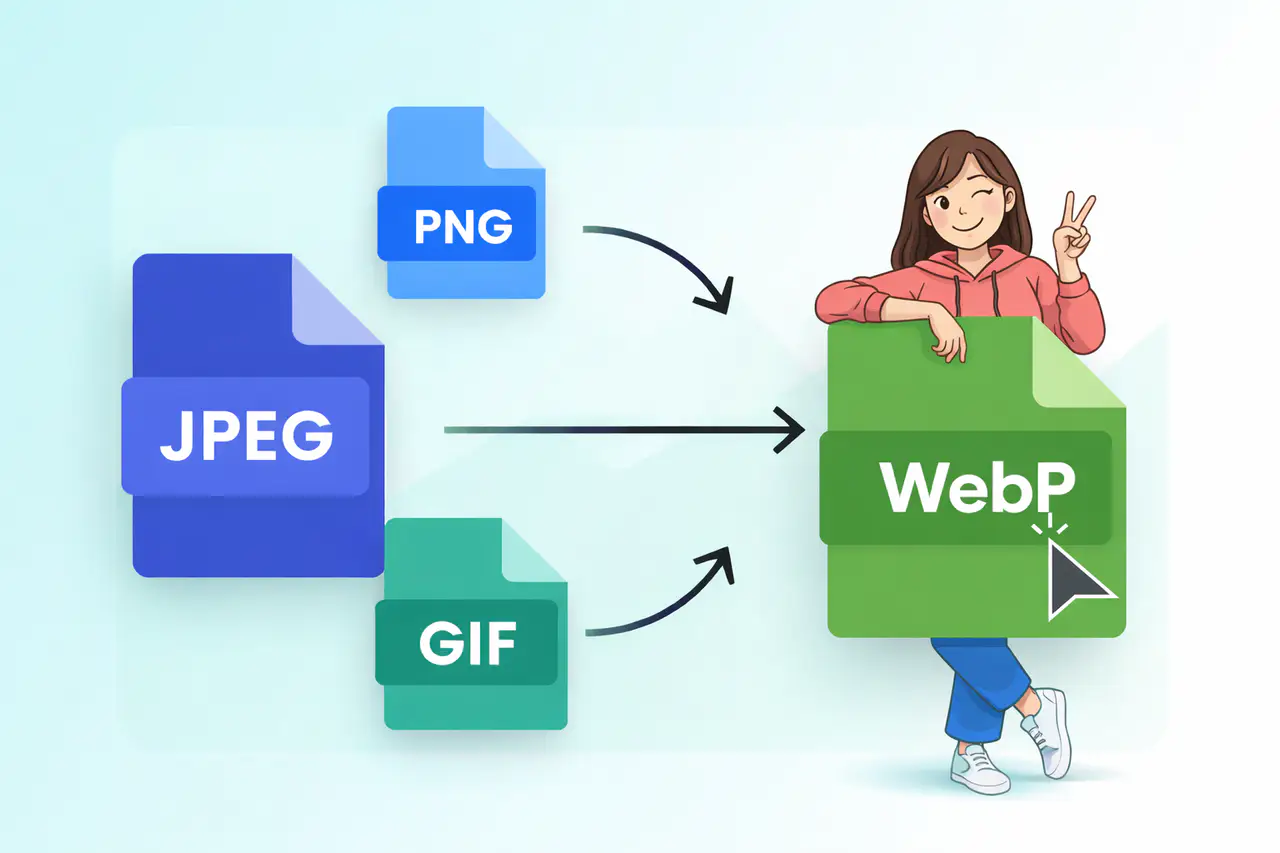
JPEG — The Everyday Workhorse
JPEG (or JPG — same format, different file extension) is probably the format you use most without even thinking about it. Vacation photos, product shots, social media images — anything with lots of color and natural detail tends to be a JPEG.
The reason JPEG files stay relatively small is lossy compression. During the save process, JPEG quietly discards image data that the human eye is unlikely to notice. A blue sky doesn't need to store 47 slightly different shades of blue per pixel — JPEG smooths those out and saves storage in the process.
The trade-off? Every time you open, edit, and re-save a JPEG, it compresses again. Over multiple rounds, quality starts to visibly degrade — edges get blocky, gradients develop banding artifacts. This is called generation loss, and it's why JPEG is great for final output but not ideal as a working format during editing.
JPEG also doesn't support transparency. If you need a logo on a see-through background, JPEG can't help you — it'll fill that transparent area with a solid color (usually white).
Use JPEG when: You're working with photographs, editorial images, or any visual where file size matters more than pixel-perfect precision. Blog hero images, e-commerce product photos, and social media posts are classic JPEG territory.
PNG — When Every Pixel Counts
PNG stands for Portable Network Graphics, and it takes the opposite approach to JPEG. Where JPEG throws data away to save space, PNG uses lossless compression — nothing gets discarded. Every pixel in the output matches the original exactly.
This makes PNG the obvious choice for graphics with hard edges, flat colors, and text — think logos, icons, screenshots, and UI elements. The real killer feature, though, is transparency. PNG supports full alpha channel transparency, which means you can have partially transparent elements, soft drop shadows, and clean edges on any background. For designers, this is non-negotiable.
The downside is file size. A PNG photograph can easily be 3-5x larger than the same image saved as JPEG. On a page with multiple large PNGs, that weight adds up fast. I've personally seen sites where switching just the hero banner from PNG to a properly compressed format cut page load time by over a second. According to Google's Core Web Vitals research, anything beyond 2.5 seconds on the Largest Contentful Paint metric starts hurting your search rankings.
Use PNG when: You need transparency, pixel-perfect graphics, or lossless quality — logos, icons, screenshots, design mockups, and any element with text rendered into the image.
GIF — The Animated One
GIF has been around since 1987, which in internet years makes it practically ancient. It's famous for one thing above all else: animation. Those looping reaction clips, memes, and short visual snippets that live in every group chat? That's GIF doing what GIF does best.
But GIF has real limitations. It supports only 256 colors per frame (compared to JPEG's 16.7 million), which means anything photographic looks terrible as a GIF. The files can also get surprisingly large for what they deliver — a 3-second GIF can easily be 5-10MB because each frame is essentially a separate image stored in sequence.
For static images, there's almost never a reason to use GIF in 2025. PNG does everything GIF does for still graphics, but better. For animation, newer formats like WebP and AVIF offer the same looping capability at a fraction of the file size. GIF survives largely because of ecosystem inertia — messaging apps and social platforms have built entire features around the format.
Use GIF when: You're creating short animations for social media or messaging where broad compatibility matters more than efficiency. For everything else, consider WebP animations or short video formats instead.
SVG — The One That Scales Infinitely
SVG is fundamentally different from every other format on this list. Instead of storing a grid of colored pixels, SVG stores mathematical instructions — "draw a circle here, fill it blue, add a curve there." This means an SVG image looks perfectly sharp at any size, from a 16px favicon to a billboard. No pixelation, ever.
This makes SVG the ideal format for logos, icons, illustrations, and any graphic that needs to work across different screen sizes and resolutions. Most company logos you see on the web today are SVGs. The files are typically tiny (often under 5KB) and can even be animated or styled with CSS.
The limitation? SVG can't represent photographs or complex imagery with millions of color variations. It's a vector format — perfect for graphics, unsuitable for photos.
Use SVG when: You need scalable graphics — logos, icons, simple illustrations, and decorative elements that must look crisp on any screen size.
WebP — The Modern All-Rounder
WebP was developed by Google and released in 2010, though it took years for browser support to catch up. As of 2025, over 97% of browsers globally support WebP natively — including Chrome, Firefox, Safari, and Edge.
What makes WebP compelling is that it genuinely combines the strengths of JPEG and PNG into one format. Lossy compression for photos (25-35% smaller than equivalent JPEG), lossless compression for graphics (26% smaller than PNG on average, according to Google's own benchmarks), full transparency support, and even animation support that's more efficient than GIF.
In practice, I've seen WebP cut total page image weight by 40-60% compared to mixed JPEG/PNG assets — without any visible quality difference. On one e-commerce project, converting product thumbnails from JPEG to WebP at 80% quality reduced the category page's total image payload from 2.8MB to 1.1MB. The Largest Contentful Paint score dropped from 3.2s to 1.8s. That's the kind of improvement that directly moves search rankings.
The only real caveat is that some older image editing tools don't support WebP natively yet. But for web output, it's become the default recommendation — and Google's own PageSpeed Insights actively suggests it under "Serve images in next-gen formats."
Use WebP when: You're publishing anything on the web. It handles photos, graphics, transparency, and animation in one format with consistently smaller file sizes than the alternatives.
| Feature | WebP | JPEG | PNG | GIF |
|---|---|---|---|---|
| Best for | All-purpose web images | Photographs | Graphics, logos, icons | Simple animations |
| Compression | Lossy & Lossless | Lossy only | Lossless only | Lossless (limited) |
| Typical file size | Smallest | Medium | Large | Very large (animated) |
| Transparency | Yes (alpha channel) | No | Yes (alpha channel) | Partial (1-bit) |
| Animation | Yes | No | No | Yes |
| Color depth | 24-bit + alpha | 24-bit | 24/32-bit + alpha | 8-bit (256 colors) |
| Browser support | 97%+ | Universal | Universal | Universal |
How to Choose the Right Format — A Simple Decision Framework
After working through hundreds of image optimization decisions, I've settled on a mental framework that works almost every time:
Is it a photograph or complex image? Use WebP (lossy). If you need legacy fallback, JPEG is your backup.
Does it need transparency? WebP (lossless) or PNG. If file size is critical, go WebP.
Is it a logo, icon, or illustration with clean lines? SVG if it's vector-based. PNG or WebP (lossless) if it's raster.
Does it need to animate? WebP animation for the web. GIF only if you're targeting messaging platforms that don't support WebP yet.
Is it for the web at all? If yes, WebP should be your default starting point. The format handles the widest range of use cases at the smallest file sizes. That's not opinion — it's what the compression benchmarks consistently show.
The Bottom Line
Image formats aren't just technical trivia. Choosing the right one directly impacts page load speed, user experience, and search engine rankings. A site serving unoptimized PNGs where WebP would work just as well is leaving performance — and potentially traffic — on the table.
The good news is the decision is getting simpler. For most web content in 2025, WebP covers the vast majority of use cases. Learn when to reach for the exceptions (SVG for vectors, PNG for specific design work), and you'll be making the right call almost every time. And once you get the feel for it, it becomes second nature — one of those quiet skills that makes everything you build just a little bit faster.